


SSH is a ubiquituous tool for connecting to remote servers, but there are a lot of things you can do with it. Here are some techniques to make your remote sessions easier.
7
X Forwarding
A cool underrated feature of SSH is the ability to forward graphical applications over X11. You might think that SSH is just a way to use the command line remotely, but you can also run full-fledged GUI apps, albeit slower over the network than if you were sitting at the machine. This feature is known as “X forwarding.” It’s similar to how mail might be forwarded to another address. The machine is forwarding X apps from the main machine to your machine.
This is something that has been a part of X11 from the beginning, albeit over telnet and XDMCP rather than SSH. SSH is more secure, and you should avoid the other protocols if possible.
To use X forwarding, you’ll have to enable it in the configuration file. On Linux systems, it’s usually located at /etc/ssh/ssh_config. You can edit it with a text editor as superuser, such as with Vim:
sudo vim /etc/ssh/ssh_config
Look for the line that says “ForwardX11”. You can make it active by deleting the leading “#” (hash) character, then changing the “no” to “yes”. Save the file. You may have to restart the server or the system.
On most modern Linux systems with systemd the command to do this using systemctl will be:
sudo systemctl restart sshd.service
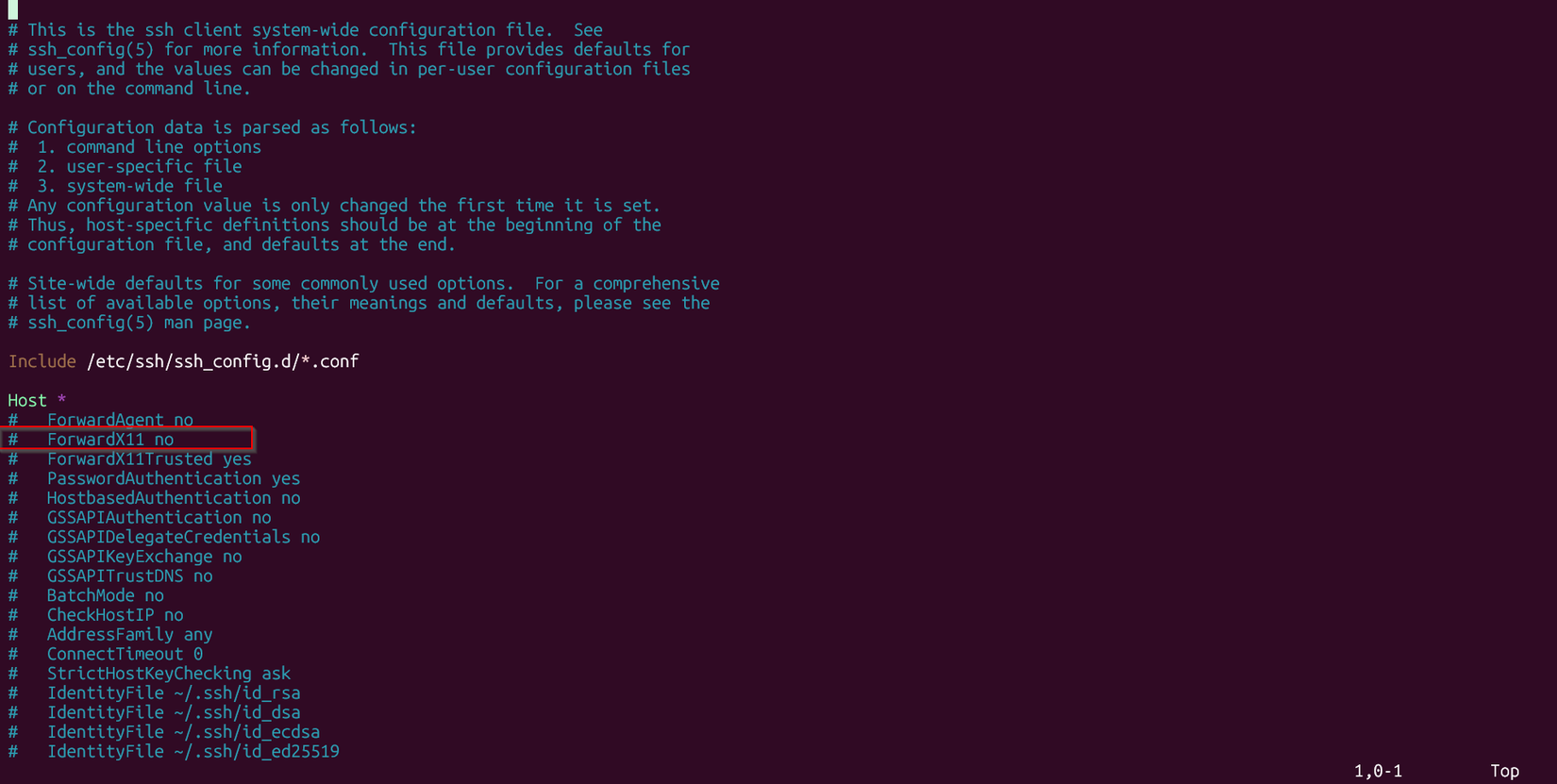
If you’re on a remote server managed by someone else, you may have to ask the system administrator to do this.
Once X forwarding is set up, you can log in over SSH with the -X or -Y options:
ssh -X example.com
Once you log in, you’ll see the familiar prompt. To check that X11 is working, first examine the $DISPLAY environment variable:
echo $DISPLAY
If it’s empty, it’s likely that something failed. Check for any error messages and double-check the configuration file.
With X11 forwarding working, you can now launch GUI apps. You’ll need to put them in the background by appending an “&” (ampersand) character. For example, to launch xeyes:
xeyes &
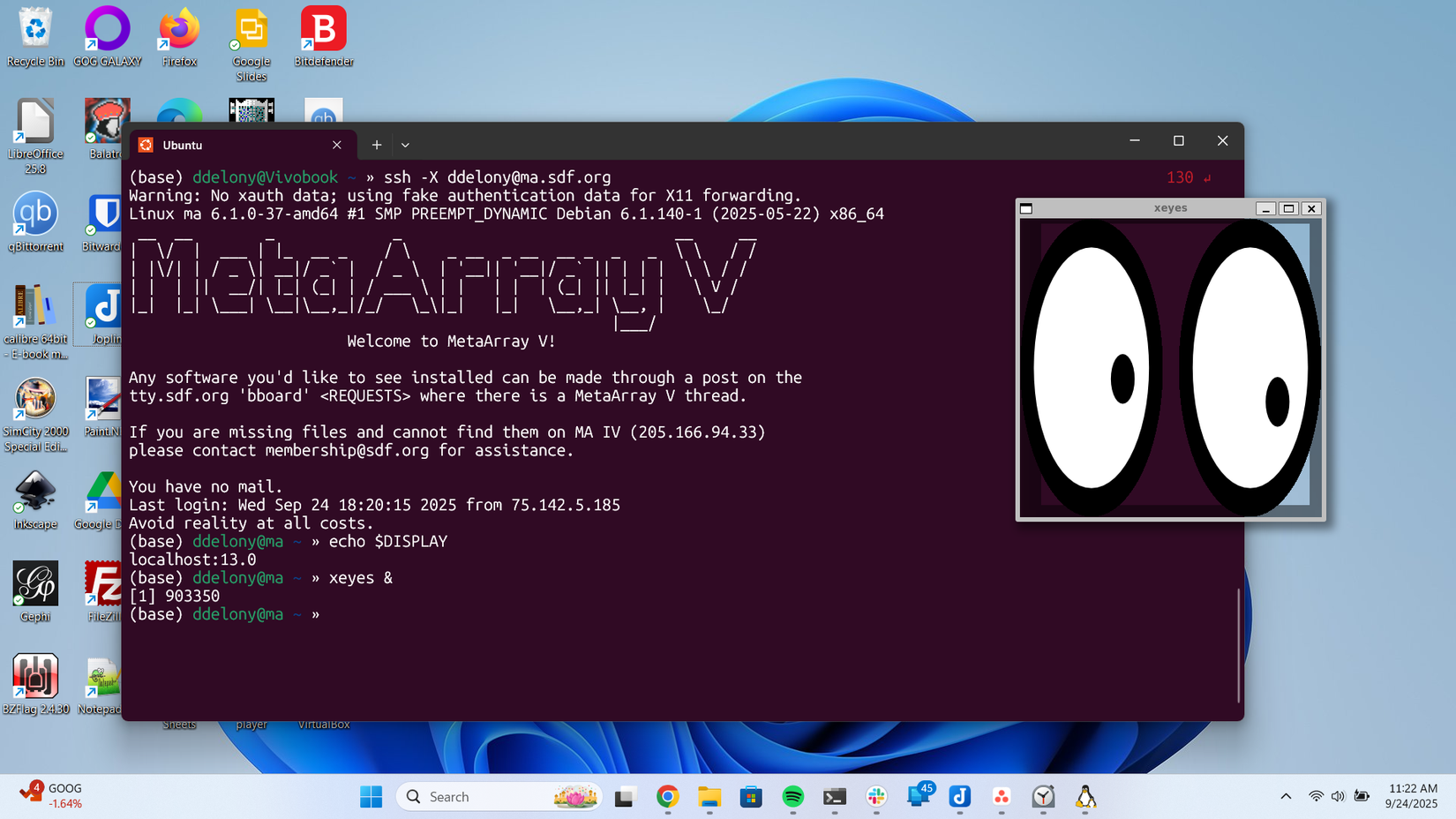
If you forget and just launch a GUI app from the terminal, you’ll find it’s taken over the terminal and won’t let you type anything. To get your shell back, press Ctrl+Z anf then type “bg” at the prompt. This will put the app into the background.
6
Logging in as Different Users
When you try to log in to a remote server over SSH, it will assume that you’re using the same username as on your local system. Many times, this isn’t what you want. You might have a different account name than on your local machine, or you may want to log in using an alternate account, such as to test a setting. This is easy to do with the SSH client.
You can specify the user by suppyling it with the “@” (at) symbol, similar to an email address:
ssh [email protected]
Alternatively, you can use the -l option
ssh -l user example.com
Of course, you need the right account and password, or set up a key, which will be explained later in this article.
5
Connecting via Different Ports
The SSH server will be listening by default on Port 22, but some servers will use other ports for various reasons. If you’ve been instructed to use another port to connect to a server, use the -p option.
For example, to connect to a system over port 2222
ssh example.com -l 2222
You can combine this with a different user name and other options:
ssh [email protected] -p 2222
If that doesn’t work, make sure you have the correct address and port number. You may need to enable a port on your local firewall, such as Windows Firewall, or on the remote server.
4
Run Commands at Login
By default, when you log in to a remote server, you’ll be presented with the shell to type commands in, but you can also run commands right from your local shell. For example, to run ls on the remote system:
ssh [email protected] ls
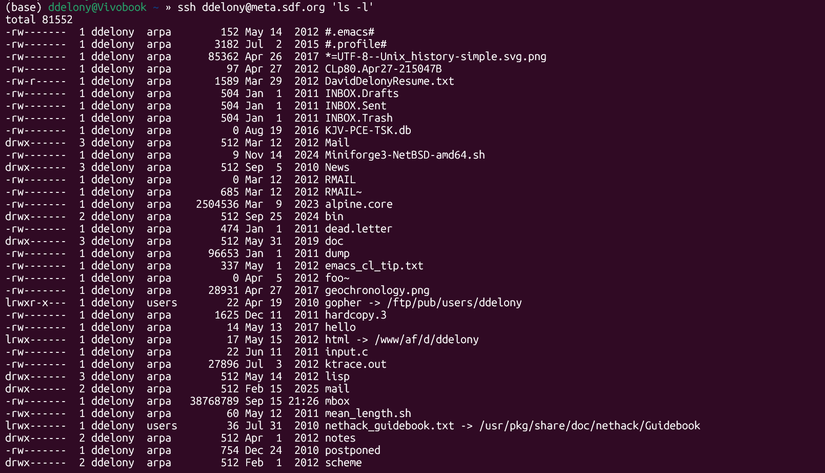
This will run the ls command, display its output in your terminal, and then exit to the local command prompt. This is handy when you only want to run commands quickly on the remote system without having to log in and out. This is also handy if you have a shell script or other program you want to run on the remote machine.
3
Using an Alternate Configuration
Apart from setting commands in your configuration file as mentioned earlier, you can set them for the sessio with the -o option. This is handy for testing new configurations before committing them to the configuration file.
An easy way to do this is to use a different configuration file.
To do this, use the -F option
ssh -F /path/to/my/config [email protected]
You can also specify options on the command line with the -o option. You can turn on X forwarding this way similar to the -X and -Y options shown earlier. See the ssh_config manpage for more details on the available options. They’re the same on the command line as in configuration files.
ssh -o 'ForwardX11 yes' [email protected]
2
Verbose Mode
If you’re having trouble connecting, you can examinging how SSH is working with verbose mode. Or you may just be curious. You can turn it on with the -v option.
ssh -v [email protected]
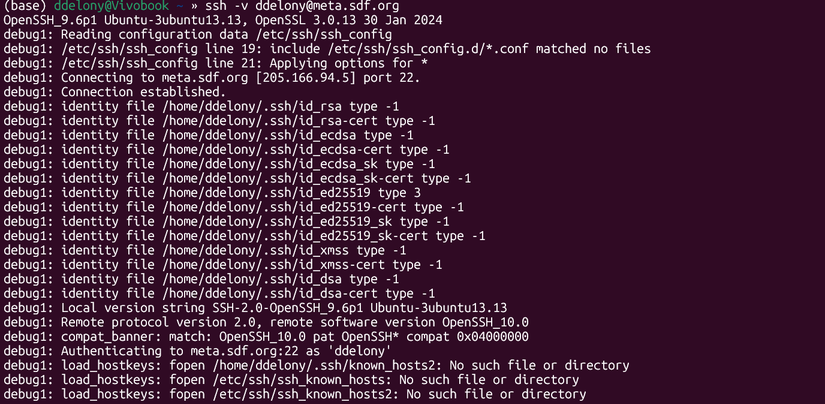
While SSH by itself is terse and doesn’t insert much information about the connection while it’s running, verbose mode displays lots of info. Most of this will be of interest to developers and system administrators rather than regular users. Here, SSH will tell you exactly what it’s doing as it makes a connection and logs you in.
If you ask for help in a forum or chat room, a developer might ask you to use this option and copy and paste the session to diagnose any issues with the program or your network.
1
Set Up a Key for Passwordless Login
You might think SSH users like to type, but a lot of times, they don’t. One thing that can get annoying to constantly type is passwords. Fortunately, you can generate a key that you can use for passwordless logins.
First, run the ssh-keygen program from your local terminal.
It will ask you what kind of cryptographic key to use. The default is Ed25519. This is what you should accept unless you’re connecting to a server that requires a specific key type.
You’ll then be prompted to type an optional passphrase. This is something that can be longer and more complex than a regular password. If you choose to use one, make sure it’s something you can remember. If you forget it, you won’t be able to use this key again. You can just press Enter to leave this passphrase blank.
ssh-keygen will generate a key pair that comprises a public key and a private key. The private key will be copied onto the remote server. The private key will reside on your machine.
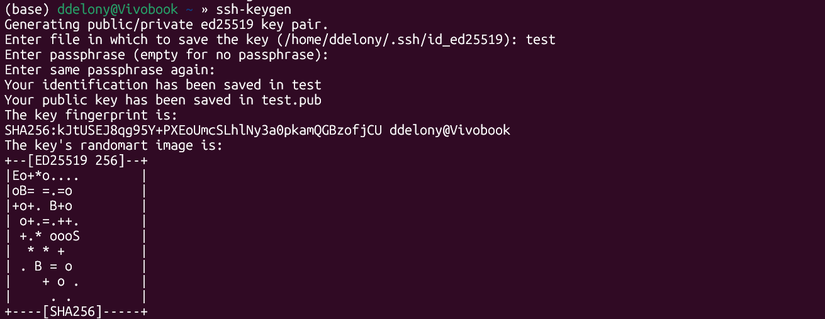
Don’t give out your private key under any circumstances. This will compromise the key pair.
The public key will be listed in the .ssh directory on Linux systems with the .pub extension. It’s an ordinary text files. You can open it with a text editor and copy the contents using your window system’s copy and paste function. You can then log in to the remote system you want to use it on and paste this public key into the .ssh/authorized_keys file. The .ssh directory should not be readable by other users on the system, as it’s a security risk, since other users can see any private keys you have on the system. SSH will refuse to run if it detects incorrect permissions. It’s best to leave the permissions at the default when SSH was installed. If you need to, you can use the chmod command to change permissions of the directory.
You can also use the ssh-copy-id program. You can run it at the command line.
ssh-copy-id [email protected]
You’ll be prompted for your password for your account on the remote machine. With a successful prompt, your public key will be copied over automatically. This might be less error-prone than doing it manually.
You might be surprised at what you can do with SSH. Its security and flexibility are why it’s a favorite of networking and computing professionals who need to manage remote servers.