


Do you love using Ubuntu but loath some of its restrictive options and annoying quirks? Even though it’s the most popular Linux distro, it’s not perfect and can feel limiting based on your workflow. Thankfully, we have GNOME Extensions to solve most of these issues and make Ubuntu almost perfect!
Ubuntu uses GNOME, and GNOME—by default—offers a very minimal and focused user experience that can feel limiting. Thankfully, you can easily fix this by using extensions—plugins for the desktop environment, which can add more features and even make aesthetic changes.
Now, to use extensions, you first need to download the Extension Manager app (available as a Debian package) from the Ubuntu App Store. Once done, you can use it to browse all available extensions and install whichever ones you like. Here are five that helped me fix the most annoying issues I encountered while using Ubuntu!
System Tray Icons With Tray Icons: Reloaded
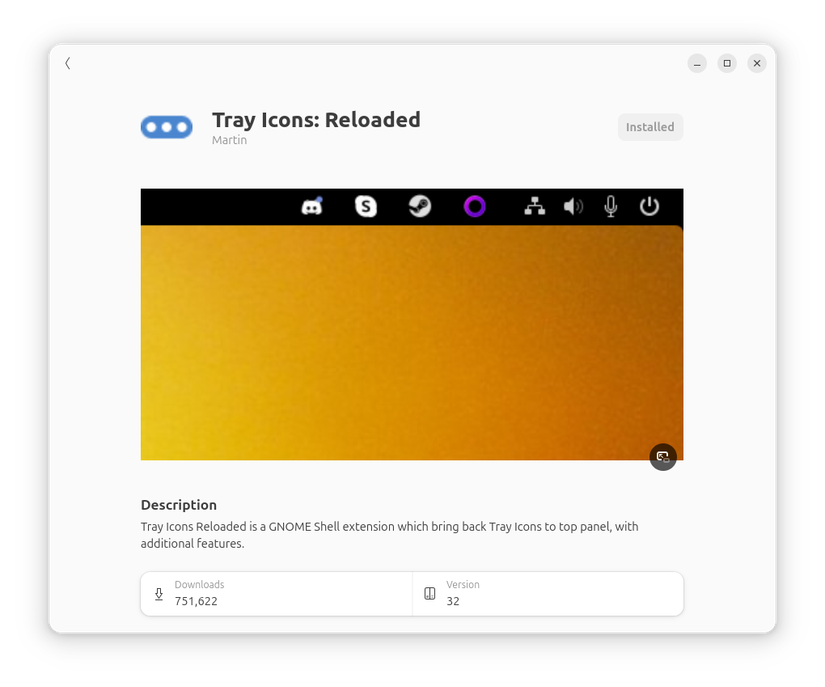
The GNOME-based Ubuntu provides a minimal desktop experience that encourages focusing on one task at a time and avoiding distractions. While that sounds good in theory, we often have to juggle multiple things at once. Sometimes, having important details visible in the corner of the screen is just plain useful.
That’s why I love having system tray icons showing all the apps running in the background and whether they have any notifications or need my attention. For example, I use Slack to communicate with my team and clients. I am also a member of multiple Discord communities and rely on it for quick access to announcements and new feature releases. It’s tremendously helpful to just glance at the desktop corner and check if there are any new messages waiting for me on either platform.
Yes, Ubuntu shows you pop-up notifications when you have a new message, but I find them more distracting than having small icons tucked away in the corner. Likewise, I also find checking the notification list suboptimal since I need to press a button to open it, whereas system tray icons are always visible.
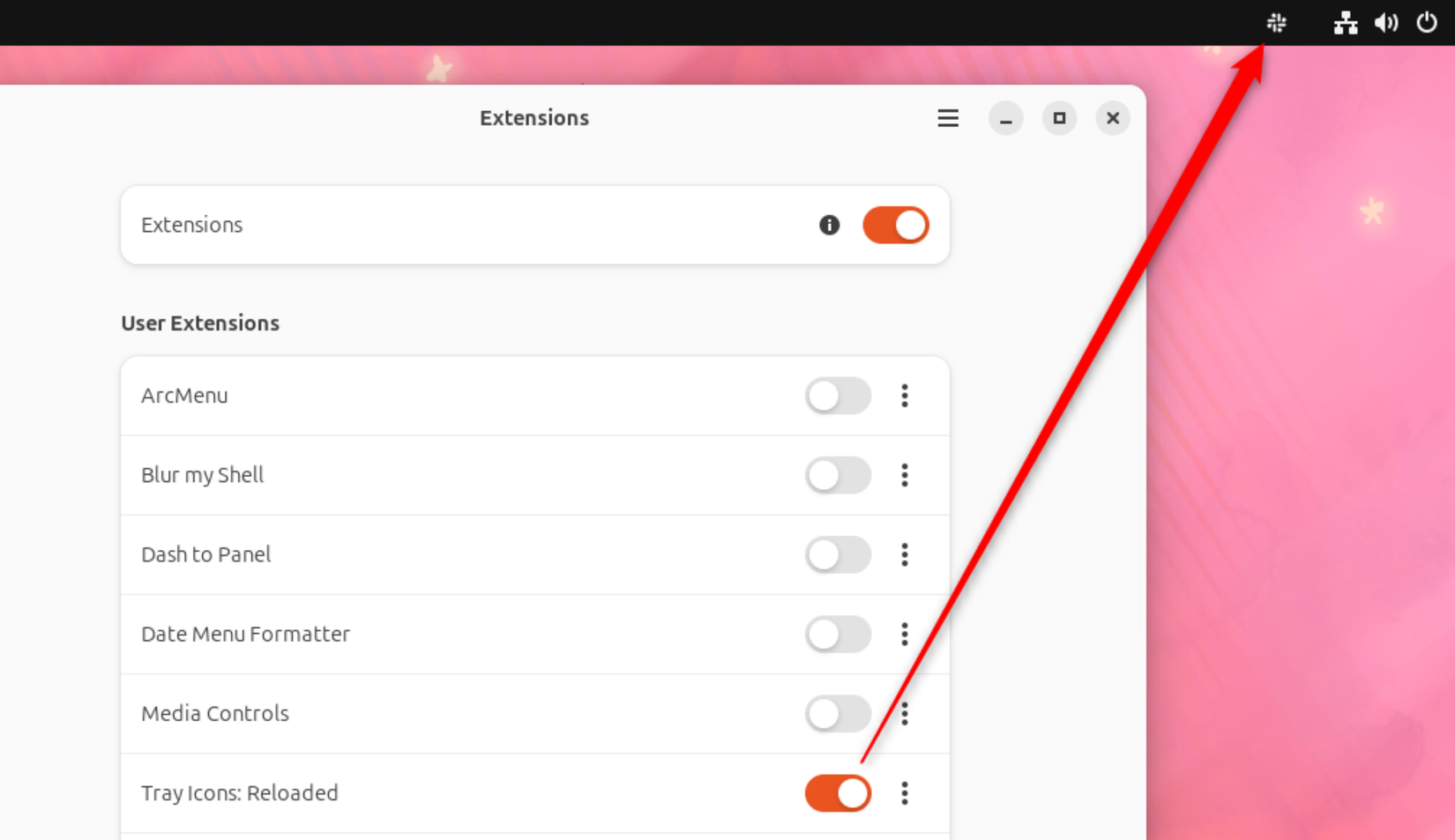
Now, if you’re sold on the idea of tray icons and want to enable them on your Ubuntu PC, the simplest way is by installing the Tray Icons: Reloaded extension. Once enabled, you get that familiar system tray experience where background apps can display their status and notifications without any extra tweaks.
System-Wide Fuzzy Search With GNOME Fuzzy App Search
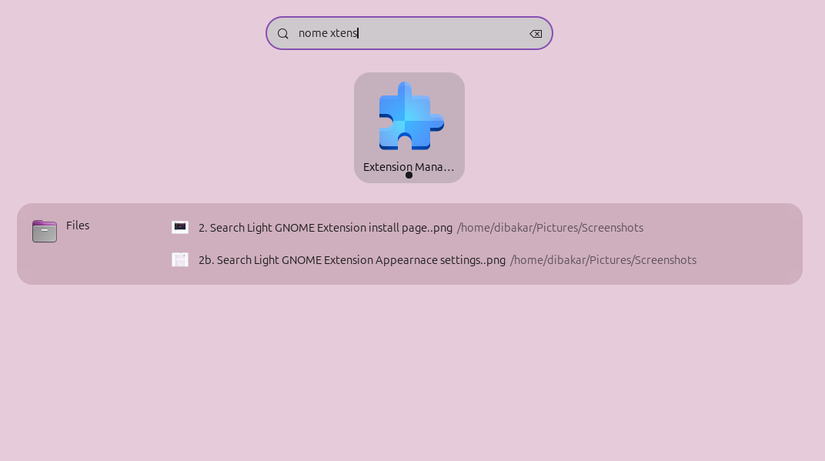
One of the best things about Ubuntu is the system-wide search. You press the Super key (Windows key), type anything, and the distro will search your entire system—whether it’s an app, something inside a document, or your system settings. It’s a powerful search feature and miles better than what you get on Windows.
However, I wouldn’t call it perfect because it demands you to be perfect! The search feature doesn’t play well with spelling errors, but when you’re typing in a hurry—which happens constantly—typos are inevitable. I think all search features should be intelligent like Google—figure out what you actually meant to type and then show those results accordingly.
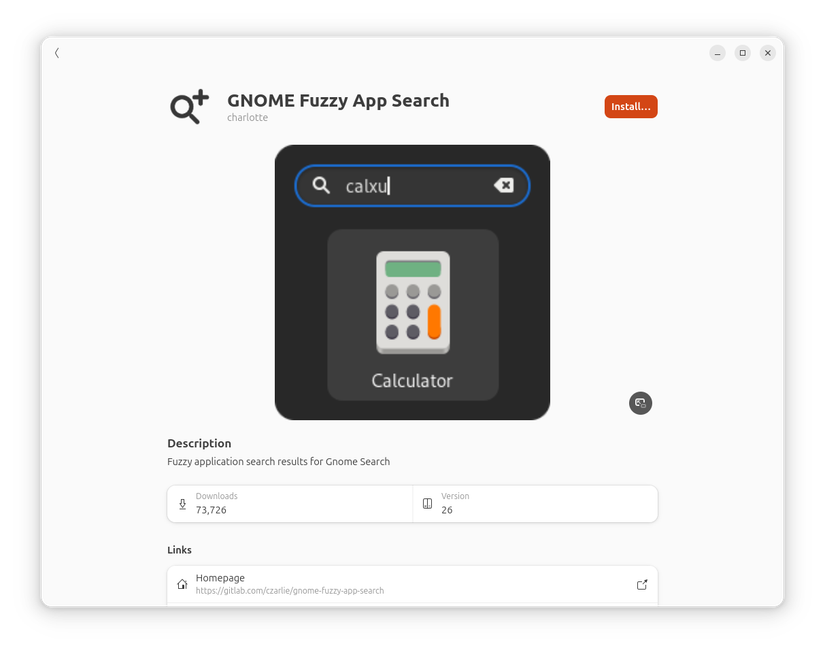
Fortunately, you can enable this feature by installing the GNOME Fuzzy App Search extension. It’s a plug-and-play solution where you enable the extension, and Ubuntu will pardon all your typos and figure out what you meant to type. It also integrates well with the core GNOME search experience and fetches relevant results from your installed apps, system settings, files, and more.
Customize the Ubuntu Panel With Open Bar
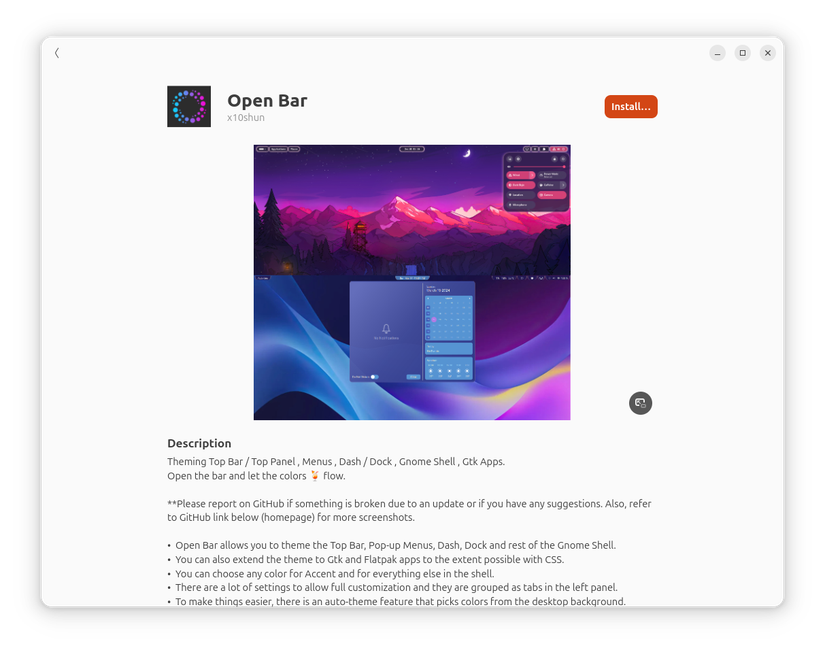
By default, Ubuntu offers limited customization options where you can just change the wallpaper and accent colors. Even Windows 11 has more customization options, where you can change the color of the Start Menu, Taskbar, and Action Center, allowing you to add some personality to your PC. Unfortunately, Ubuntu lacks this level of customization out of the box.
Now, I can hear Ubuntu veterans screaming at me that the distro does support themes, and you can use them to personalize your system. However, I don’t think they’re really solving the problem. Themes only present you with more design options and alternatives, but you’re still stuck using the theme exactly as the designer intended with little granular control. This is where Open Bar comes in.
The GNOME extension gives you a graphical interface for deep customization of your Ubuntu PC—primarily the Top Bar. You can keep it as the default rigid bar attached to the top edge, make it a floating bar, or even divide it into separate sections where each part is its own floating island. You can also control the colors and make them change dynamically based on your current wallpaper. Beyond the top bar, this extension also lets you tweak the Ubuntu Dock, pop-up menus, Flatpaks, and the new GTK4 and Libadwaita apps—which are notoriously resistant to theming.
Powerful Window Tiling Support With Tiling Shell
Every time I use Ubuntu, or any GNOME-based distribution for that matter, I get the feeling that the desktop environment wants me to use one window per workspace (or virtual desktop) and switch apps by switching between workspaces. While this can create a minimal, focused work environment that works well on laptops or computers with smaller screens, it’s not ideal for everyone, especially multitaskers.
Sure, you can go into Settings > Multitasking and enable Active Screen Edges to allow for window snapping when dragging a window to the left and right edge of the screen. This helps with two-window workflows and offers basic multitasking for medium-sized displays—anything between 19 and 24 inches. However, if you use a 27-inch monitor or larger—especially an ultrawide—Ubuntu’s tiling options feel lackluster.
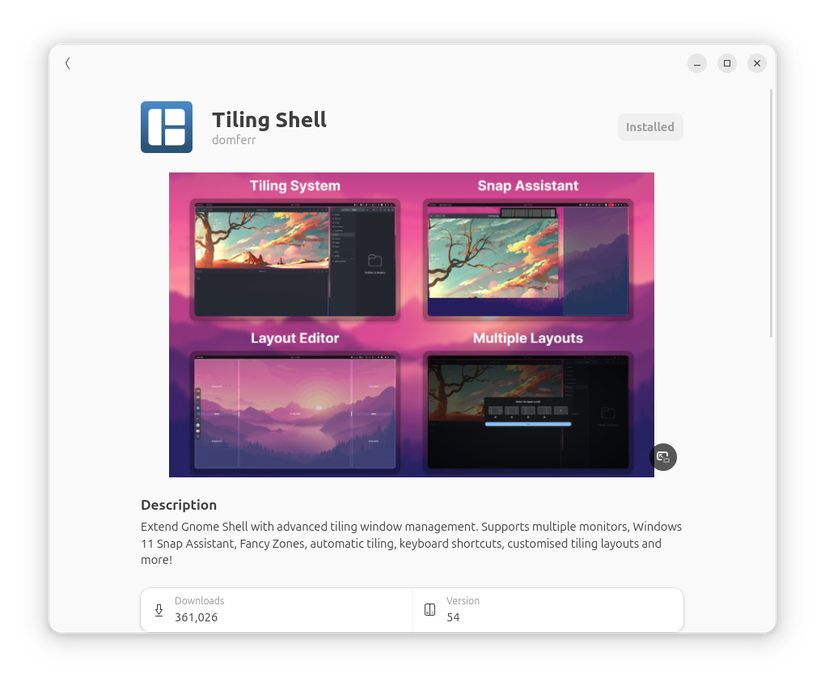
If you’re a power user like me, a developer, or a video editor—basically anyone using a large screen who needs multiple windows visible at once—you need proper window tiling functionality. Fortunately, you can solve this by using extensions. There are several good options, like Forge and gTile, but my personal favorite is Tiling Shell.
Once enabled, it works like Snap Layouts on Windows 11—drag a window to the top edge of the screen to show different tiling layouts and snap it into one of them. It also adds a small icon to the Top Bar, from where you can pick a specific layout to snap open windows. Alternatively, you can hold Ctrl while dragging windows to snap apps into pre-configured tiling zones. You can also create your own specific tiling zones with your desired dimensions for optimal control.
Jump Between Workspaces Using Workspace Indicator
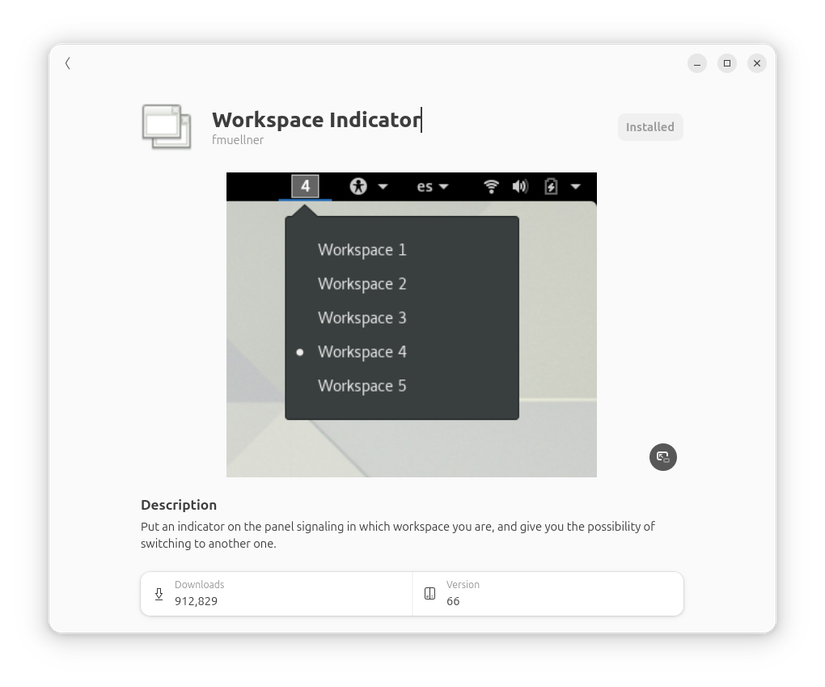
Virtual desktops are at the core of Ubuntu and the GNOME experience. With a single press of the Super key (Windows key), you enter the Activities Overview, from where you can manage all open workspaces (virtual desktops) and even launch apps into specific workspaces. It’s a powerful multitasking feature but will feel incomplete if you’ve ever used KDE Plasma and experienced the Pager widget.
For those of you who haven’t used a KDE Plasma-based distro, the Pager widget is essentially an interactive panel element that shows you all active virtual desktops and the apps open in them. What’s more, you can click on the widget to quickly jump between virtual desktops, and move apps between them by dragging and dropping the app outlines.
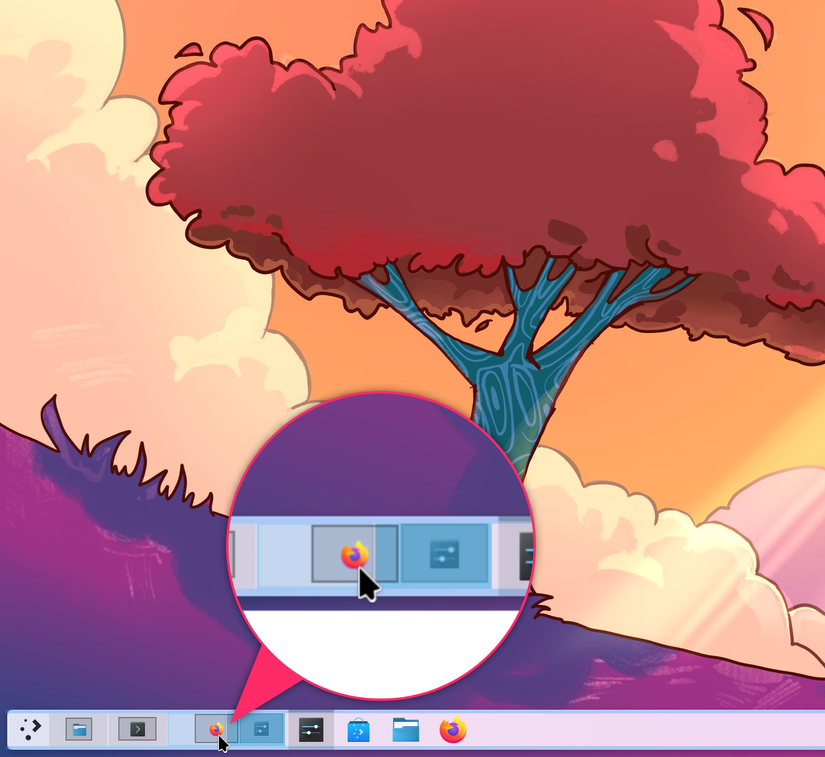
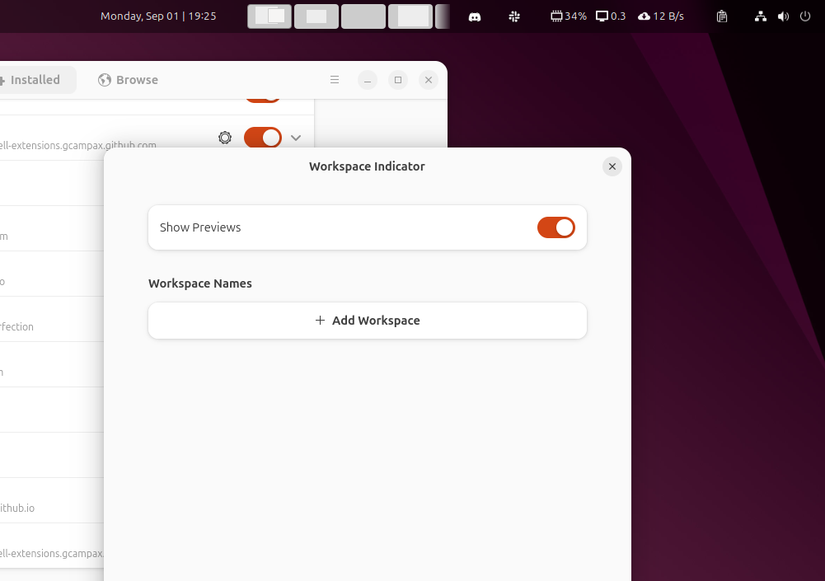
Now, the best way to get this functionality on Ubuntu is by using the Workspace Indicator extension. Once enabled, it shows all your open workspaces on the top bar, including outlines of apps open in them. You can click on workspaces to jump between them, and also drag and drop the open windows between workspaces directly from the top bar. It’s really powerful—once you use it, you’ll wonder how you ever lived without it.
GNOME Extensions are really what make Ubuntu so powerful and desirable. With literally thousands of extensions at your disposal, almost any issue or limitation you encounter while using the distro can potentially be solved by installing an extension. That said, if you’re new to this world, there are more extensions out there to get you started.