


The weekend is the perfect time to put your Linux PC to the test and see what you can actually do with it. These are some native Linux applications I think are worth trying out if you haven’t already installed them.
This week I’m bringing you a mix of practical tools and just plain nice-looking cosmetic software. While it’s important your computer is functional and useful, you want your screenshots, your live streams, and your web browser look good too.
Flameshot: Screenshots for Professionals
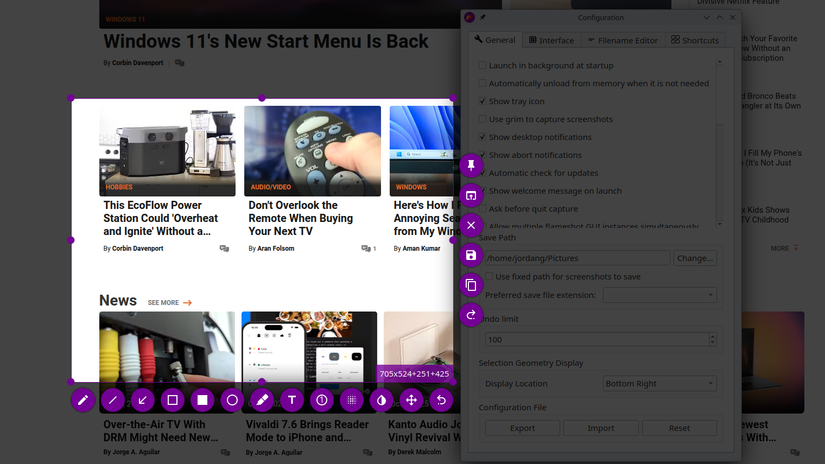
There’s a reason Flameshot is one of our top-recommended screenshot tools for Linux. It’s a well-established open source project, it has a ton of built-in annotation tools, and it’s widely available across Linux distributions.
Of course, you could say the same things about the screenshot tool I’ve spent most of my time on Linux using, Spectacle. One big difference, though, is that Flameshot is immensely customizable. You can make such specific tweaks as editing the number of undo actions you can take, change where the geometry dialog appears, and recolor the interface. Your hand-crafted Flameshot configuration can also be easily exported and imported when you move to a different device.
It also packs several power user features, like automatic file path copying on save, JPEG compression adjustment, and a built-in magnifier. If you do a lot of screenshot work on your Linux computer (or Windows and Mac for that matter, it’s cross-platform) you’ll want to give Flameshot a shot.
Flameshot is available in most Linux repositories.
sudo apt install flameshot #Debian and Ubuntu
sudo dnf install flameshot #Fedora
sudo pacman -S flameshot #Arch
sudo zypper install flameshot #openSUSe
I also love that Flameshot is available as an AppImage from the Flameshot website. That means I can put the AppImage file on a USB stick and take it with me to any Linux desktop I plug into.
Webcamize: Convert Any Camera to a Webcam
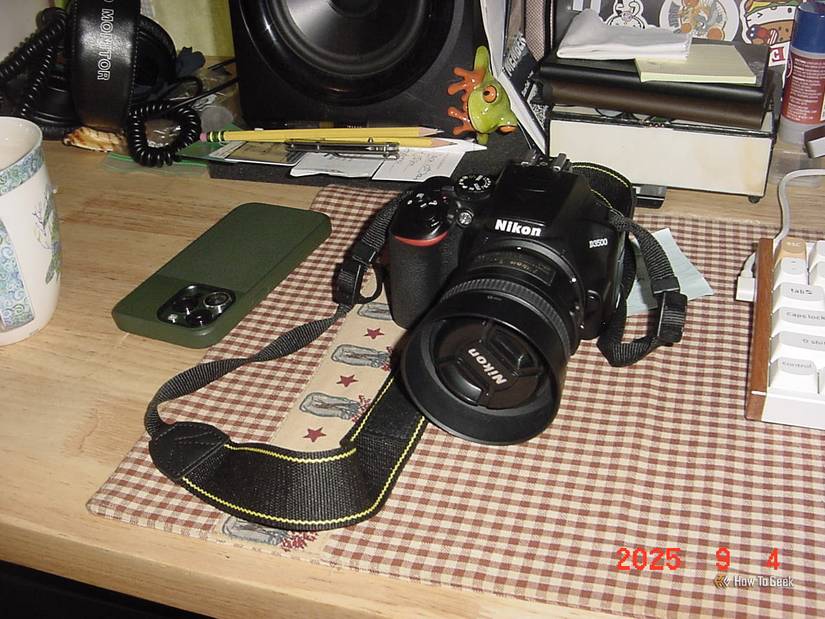
If you have an old camera sitting around, be it a point-and-shoot, a DSLR, or a camcorder, Webcamize can turn it into a usable webcam for your Linux PC. It even tries to fix webcams that don’t normally work well with Linux, and some smartphones are compatible too.
Webcamize is a command line interface application, but don’t let that scare you. Usage is dead simple. After you’ve installed it, and after you’ve connected a camera with a data cable, just run the command:
webcamize
It will try automatically detecting your camera, receiving input from it, and generating a stream. If it fails, or if it doesn’t look just how you want it, there are some command options available to specify a camera name, specify a path to the device, and limit the frames per second. To confirm your camera will work, you can search the Webcamize hardware support list.
Full disclosure: I wasn’t able to test this app myself because my old Kodak point-and-shoot camera I wanted to test it with is missing its USB cable. Still, I’ve seen multiple people online saying they’ve had success with Webcamize and found it useful.
To install Webcamize, Arch users can get it from the AUR:
yay -S webcamize
Everyone else will have to follow the Webcamize build-from-source instructions. It’s a bit technical, so be prepared to manually install a few dependencies, clone a git repository, and use the make command.
Geckium: Bring Back the Old Browsers
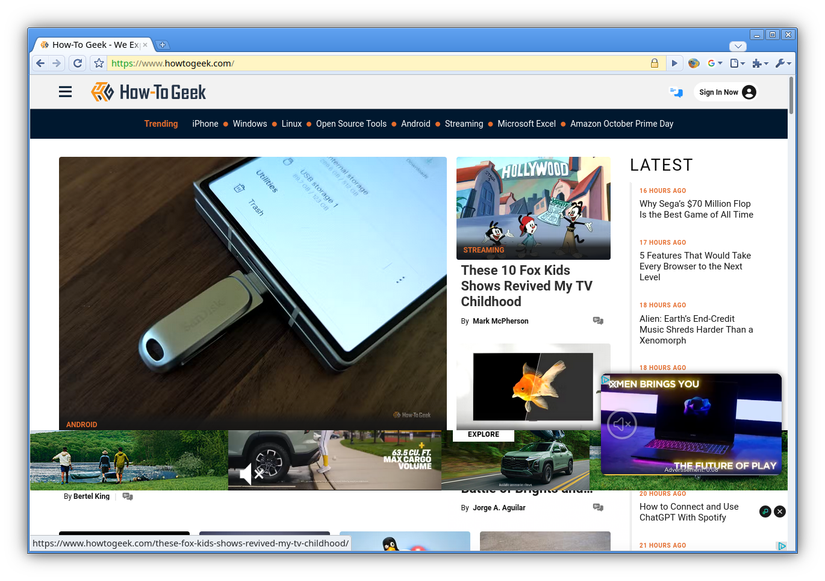
OK, this one isn’t itself a bespoke application, but I came across Geckium this week and really wanted to show it off. It’s an open source theme for Mozilla Firefox and Firefox ESR that makes the web browser look like Chromium in its earliest days.
Actually, you can select the specific Chromium era you want. That’s what made Geckium really stand out to me, is its impressive array of configuration options. There are a lot of specialized tweaks you can make for specific effects and modern integrations if you want them.
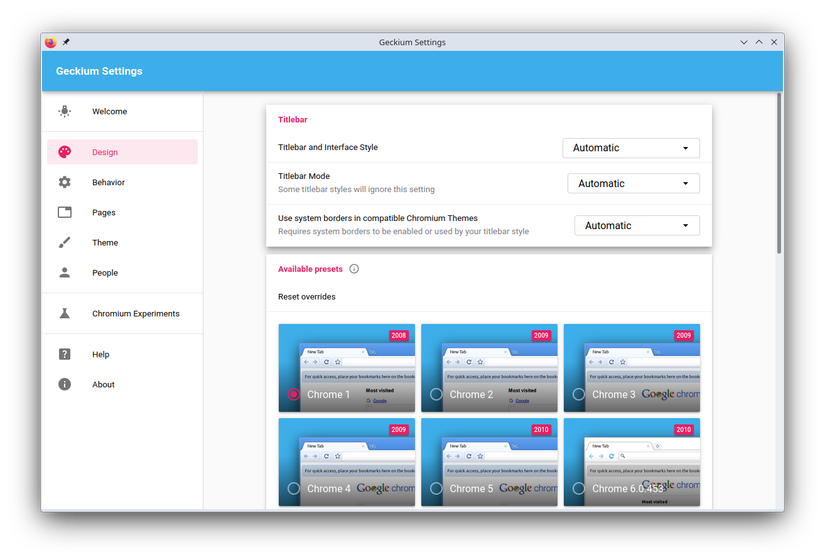
What surprised me was the attention to detail. Not only are the browser panels and tabs a throwback, but the suggestion list that appears when you type in the address bar looks how I remember. I’m looking forward to combining this with the Chicago95 theme for Xfce so I can make like I’m using dangerously outdated software. What is Linux without some customizing fun, anyway?
Installing Geckium on Linux is a little challenging. It’s not a simple Firefox extension; it’s an entire theming scheme with configuration files that need to be copied to the right location. To get the details, head to the Linux installation instructions for Geckium. I should point out though that Geckium isn’t likely to work with Snap versions of Firefox nor any Firefox forks. The Flathub version of Firefox is also going to require some extra technical tweaks.
That’s all I have for this week, but if you want more options, check out last week’s roundup of useful Linux apps. They included a terminal screen recorder, a hand-written notes app, and a unique launcher.