


One of the most missed software when switching to Linux is Notepad++. Many Windows users love it due to its simplicity and programming-related features. There are many modern text editors on Linux that do a great job. After some searching, I’ve found one that I like a lot.
My Experience With Text Editors on Linux
With my time on Linux, exploring different distros and desktop environments, I had my chance to use many different text editors. There are the classic ones, such as Vim, nano, and Emacs, which still live up to their reputation. Then there are more distro-specific editors such as gedit, Mousepad, and Xed. All of them are great editors and have their advantages.
What made text editing a much more enjoyable task for me than a boring chore, though, is Sublime Text. I first learned about it when I tried my hand at competitive programming challenges. Turns out, Sublime Text is not for programmers only; it’s also a powerful editor for writers. That’s when I fell in love with it.
Sure, it’s not a carbon copy of Notepad++ on Windows. It may not offer all the same functionalities. But it’s a worthy opponent that can achieve quite similar results with its sophisticated features. While you can technically get Notepad++ on Linux, I thought I’d try to stick with Sublime and see how far I could go without any complaints.
What Makes Sublime Text So Great
There are many things to like about Sublime Text. It’s a fast, lightweight, and highly customizable text editor with a slick user interface and many useful features. It also contains a vast ecosystem of packages for extending its capabilities.
Slick and Polished UI
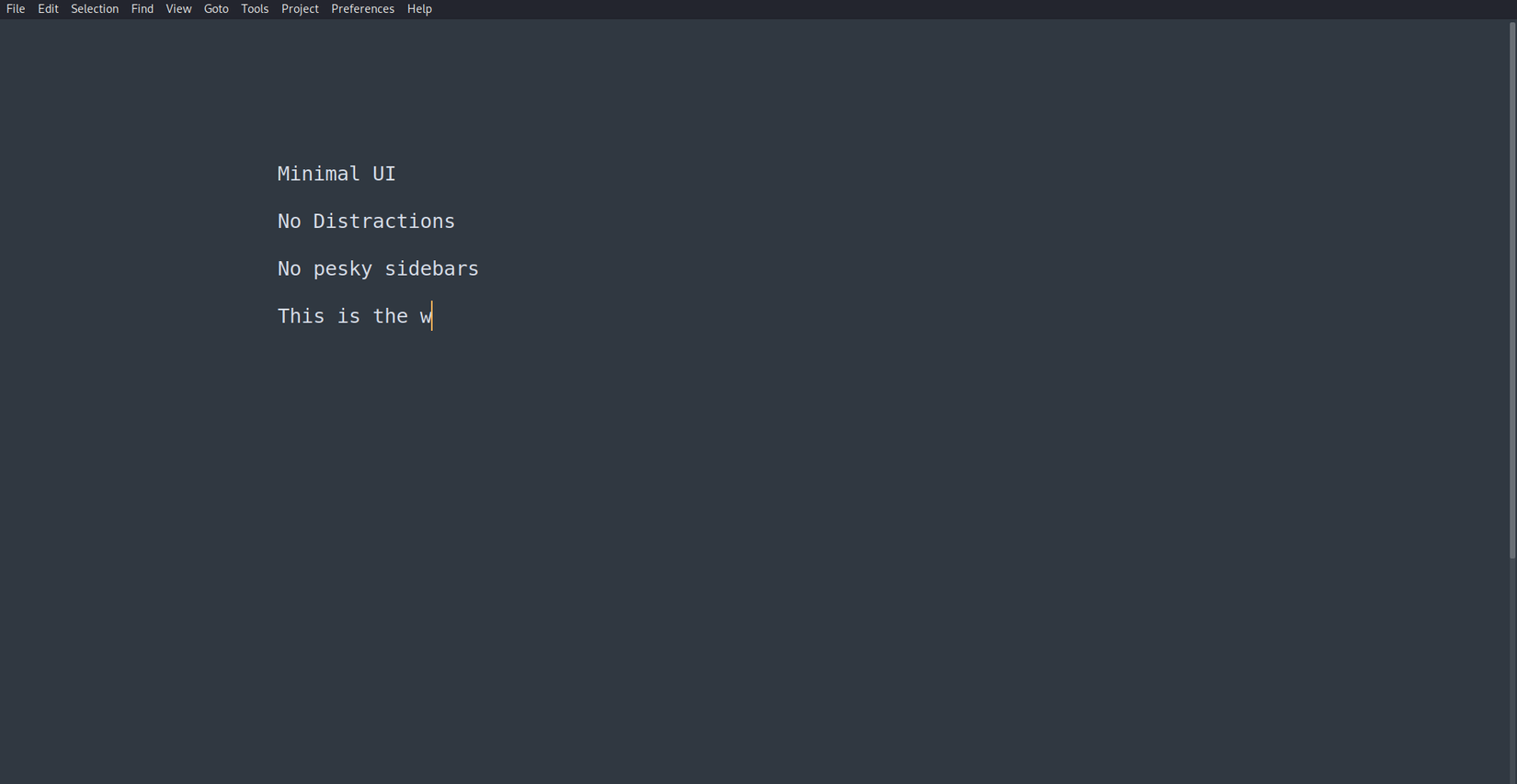
One of the first things that attracted me to Sublime was its streamlined UI. Something about it just makes you blend into the environment and start writing. For a text editor, it certainly offers a lot of quality-of-life features despite having a clean and simple interface. The split window system is extremely useful for me when I need to work with multiple files at the same time.
On the right side of the editor panel is a minimap. It helps you quickly navigate through large text files when you want to skim through blocks of text. One thing I find cool about Sublime Text is the “Distraction Free Mode.” When enabled, it hides almost everything except the editing panel. When you need some ultra focus, this mode comes in handy.
Lightweight and Fast
Sublime Text is pretty mild on resources. I’ve used it on my main hardware as well as inside virtual machines where I allocated minimal resources. To my surprise, it ran pretty well. I hardly saw any lag when working with multiple files. More importantly, it can also handle large files without complaining.
It’s also fast. In most cases, I see it open almost instantly. This makes it ideal when I just want to take some quick notes or jot something down. Compared to some other heavyweight editors, such as VS Code, Sublime Text is more suited for general-purpose use. I appreciate how it serves as a middle ground between specialized IDEs and basic text editors, making it a useful replacement for both.
Customization
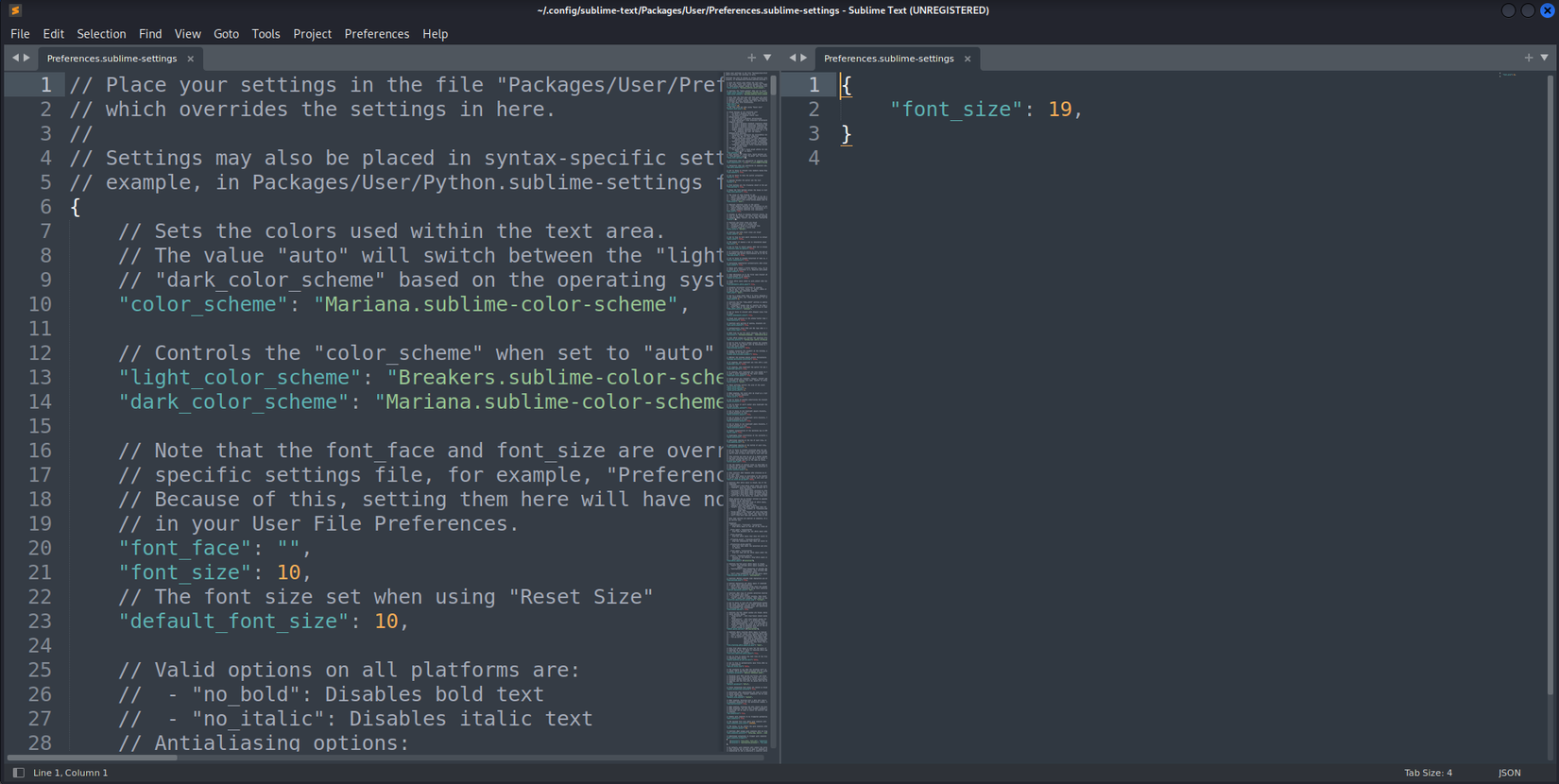
Linux fans love customization. Sublime Text offers plenty of customization options. For starters, you can change the visual style of the editor by choosing a different color scheme or a custom theme. Then there are indentation settings, key bindings, syntax-specific settings, and settings specific to other parts of the editor.
For customization, you can go to “Preferences” on the top menu. From there, play around with any settings you like. If you know how JSON files work, you can even tweak that to get your preferred settings. The point is, customizing Sublime Text to make it your own is pretty easy.
Rich Plugins
You don’t have to stop with what Sublime Text offers built-in. Adding to the previous point of customizability, it’s also quite extensible thanks to the vast plugin ecosystem it has. There’s a dedicated package manager known as Package Control that makes it effortless to search for and install plugins. You can also get packages from GitHub and BitBucket.
There are thousands of plugins, including smart coding plugins, formatting plugins, version controlling (Git) plugin, theme plugins, and so many more. Installing is also quite simple. You can use the Package Control package manager from the “Preferences” menu. From there, choose “Install Package” and then you’ll see a list of available packages.
Advanced Features
Sublime Text’s advanced features include powerful multi-cursor editing for simultaneous text manipulation, a Command Palette for quick access to all commands, context-aware auto-completion that understands your project, flexible project and syntax-specific settings for customization, and a Python-based API for extensive plugin development, enabling features like Language Server Protocol (LSP) support for advanced coding assistance.
Simultaneous editing allows you to place multiple cursors and make the same edits in different locations simultaneously. The command pallette is a central hub accessible by a keyboard shortcut, letting you quickly find and execute any available command. If you like the Command Pallette in VS Code, you’ll feel at home.
The search functionality of Sublime Text is also up to par. I know many of you really like the search option in Notepad++. Sublime’s search is also quite rich in that sense. You can make basic word searches, case-sensitive searches, use regular expressions, and save the search results to a buffer. There’s also a replacement field that allows you to replace the searched word in one go.
One Thing You Should Consider Before Switching
As Linux users, a lot of us prefer to use free and open-source software. In case it bothers you, Sublime Text is proprietary software. It requires a one-time license that costs $99, as of writing this. This provides you with 3 years of updates, after which, you’ll need to upgrade to receive the latest version. This means the license won’t expire. You’ll need an upgrade fee for future versions.
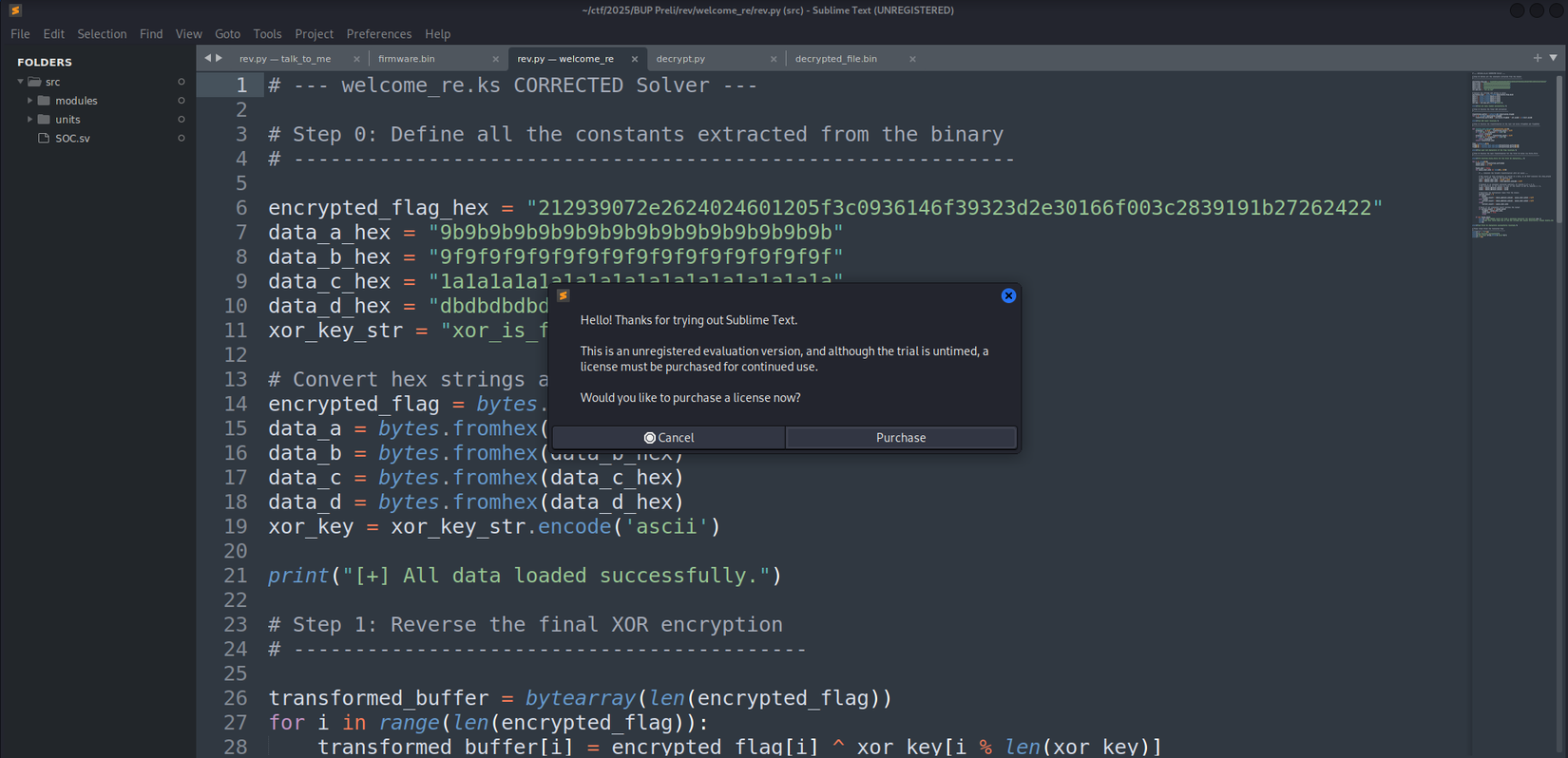
That being said, Sublime Text allows you to download it for free and evaluate it. The interesting part is that there’s no limitation to this trial period. That means you could potentially use it forever without paying for a license. So what’s the catch? You’ll get a pop-up every now and then, asking you to buy a license. At the very top of the panel of the editor, there will also be the text “Sublime Text (UNREGISTERED)” written after the file name.
If that’s something you don’t mind dealing with, feel free to try out the evaluation version yourself. If you like it, you could buy a license to support the development of the editor.
It’s true that Sublime Text can’t fully replace Notepad++. However, from my usage, I found it to be the closest when it came to text editing and coding experience, considering it’s not even a clone. If you’re still stuck with the default Linux text editor, give Sublime Text a shot by visiting the Sublime Linux download page. If it turns out you don’t like it, try some alternative editors for Linux.