


There’s absolutely no reason a phone’s keyboard app needs to connect to the internet, yet every popular keyboard app does this. Google’s Gboard and Microsoft’s Swiftkey both ping home, which feels like a privacy nightmare. The problem is that I’ve never been able to find a keyboard that’s just as good as Gboard—until now.
Why Use Heliboard
I’ve tried a bunch of offline keyboard alternatives over the years, but they always lack something or another that I need. Actively developed open source, offline Android keyboards are few and far between. And of those available, none offer the many, many customization options and features available on Google’s Gboard.
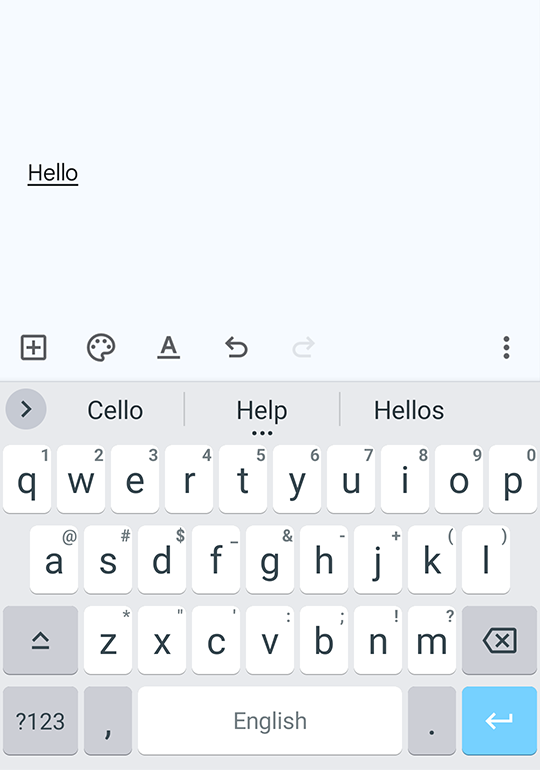
Heliboard comes with every single feature available in Gboard, and then some. It supports themes, clipboard history, multiple languages and layouts, persistent incognito mode, personal dictionaries with shortcut triggers, flexible autocorrect, typing suggestions, space bar gestures, clipboard history, and a lot more.
On top of that, it’s 100% offline (you can verify for yourself that it doesn’t connect to the internet at all in the settings app) and you can inspect the code for yourself on the app’s Github repo.
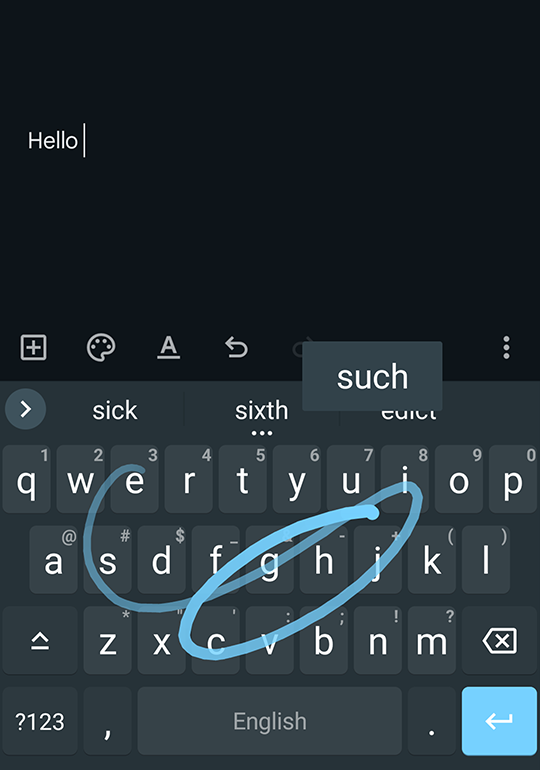
The one feature that I haven’t found in any of these virtual keyboards is swipe or glide typing, but Heliboard can even manage that (with a few caveats that I’ll talk about shortly).
The point is that Heliboard is the perfect keyboard, and by the end of this article, I hope to convince you to try it too.
Layout and Languages
Let’s start with the layouts and languages. Just like Google’s Gboard, Heliboard lets you select multiple languages for the virtual keyboard, and you can switch between them on the fly.
The same as Gboard, you can also change the keyboard layout for any given language. So if QWERTY isn’t your go-to, you can switch to alternative layouts like PC, Dvorak, AZERTY, and a few others.
More than that, you can even import custom layouts downloaded from the internet that you configured yourself and load them into Heliboard. The community has posted some interesting layouts like math typing, numpad layout, Swiftkey-like and Gboard-like layouts, and LG keyboard clones. You can download and try them yourself. Pretty neat.
Clipboard History
Now for preferences, you can configure some basic things like hints, number rows, emoji buttons, and language switching keys. It’s all pretty standard.
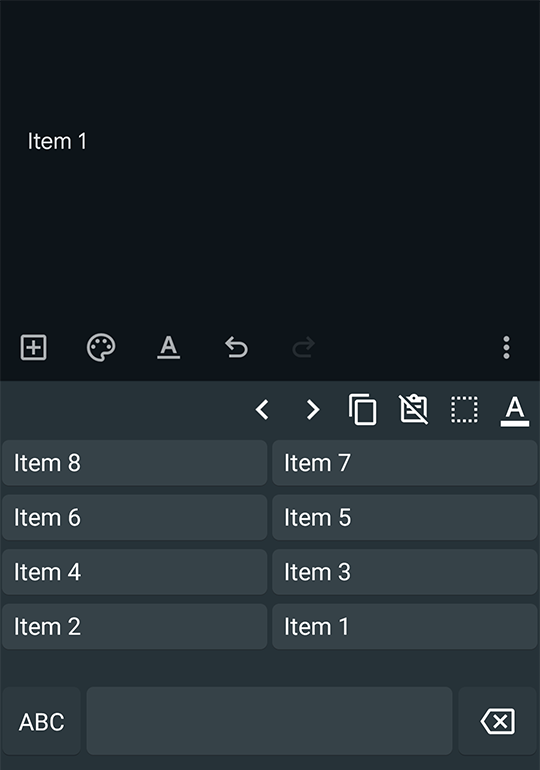
One thing worth mentioning is the clipboard history. Just like Gboard, Heliboard also keeps a history of all the text snippets you’ve copied. Except it’s better because, unlike Gboard, which can only retain up to 5 pastes, Heliboard can save an unlimited number of snippets. You can pin snippets to the clipboard, too. Gboard’s clipboard history resets every hour or so, but you can set Heliboard to reset it every 10 minutes or never wipe it at all—that way the keyboard can retain every single piece of text you’ve ever copied.
Themes and Customization
The customization is where Heliboard easily outshines Gboard. With Gboard, you have a set of preset themes, and you can change the background too. Heliboard takes that one step further. You can choose from a bunch of color themes and even add your own background images. You can also change the style of the keyboard to make it rounded, sharp, or Material UI. Gboard does let you change the opacity of the background, but Heliboard doesn’t, so point to Google for that feature.
The keyboard’s height can be changed without those weird scaling or stretching issues. With font scaling as a separate slider, you can change the font size of the keys, independent of the keyboard dimensions. Pretty handy. You can also change the padding on the sides and bottom.
You can display a custom message on the spacebar and set a default skin tone for the emojis, so you don’t have to manually switch to the right color every time you use a new hand emoji.
Finally, you can import custom fonts downloaded from the internet to replace the default Heliboard font. Gboard keeps you stuck with Google’s one default font, but you can really make Heliboard match your vibe.
Force Incognito Mode
The toolbar (the tiny row of buttons that sits above the QWERTY row) is mostly a recent addition to virtual keyboards. If you don’t like it or find it distracting, you can disable it in Heliboard to get a minimalist keyboard. You can also customize it only to show when the suggestion strip is in action.
Alternatively, you can select which buttons to display from a list of two dozen tools. One of these buttons is the Force Incognito switch, which (you guessed it) forces the keyboard to never learn from your typing. Gboard has this incognito feature, actually, but it is only available in incognito browser windows, and you can’t enable it everywhere.
Text Correction
Heliboard has all those autocorrect features that Gboard does, except you can also adjust how aggressive the autocorrect gets. You can also decide how the suggestions show up, and whether to include names from your contact list in the suggestions.
The feature to look out for here is the personal dictionary setting. Here you can add custom words, phrases, or long snippets of text to a personal dictionary that shows up in the suggestion strip. You can also set trigger shortcuts here that expand to longer pieces of text that you’ve fed into the personal dictionary. For example, “omw” could expand to “on my way!” or “temp” could expand to an email template.
Gesture Typing
I saved this feature for last because it comes with a meaningful asterisk. Heliboard, by default, exclusively uses open source libraries, but there is no open source library available for the glide typing that matches the sophistication of Gboard’s swipe typing, so Heliboard doesn’t come prepackaged with glide typing.
There is a way to enable glide typing on, but you’ll have to load a closed-source gesture library to make it work. Once it’s loaded and enabled, gesture typing works incredibly well on Heliboard, and the typing experience feels just like Gboard’s, if not better.
To download the correct library for your device, go to the Openboard repo and download the .so file. There are four different variants of the gesture library available on the GitHub repo, which you can download by clicking the tiny download icon.
To load the gesture typing library, go to Heliboard > Settings > Advanced > Load Gesture Typing Library. Here, tap the file you downloaded. It should instantly enable gesture typing on Heliboard.
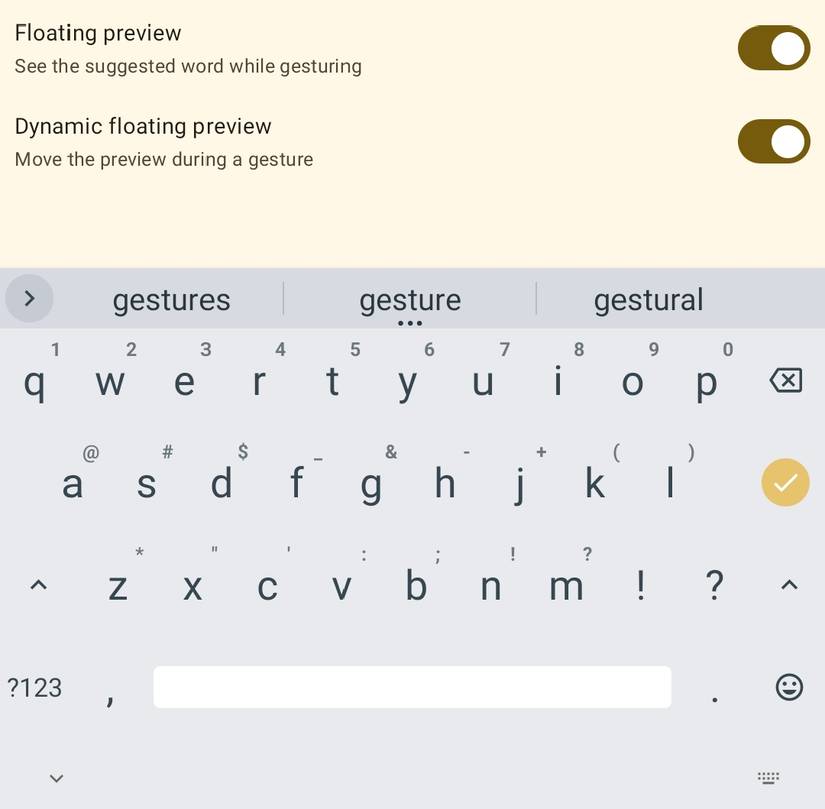
When it’s enabled, you can configure gesture typing with gesture trails, floating word preview, and phrase typing by including the space bar.
Keyboards should be totally offline, and Heliboard proves you don’t need to miss out on any features because of that. If Gboard is your go-to, you should feel right at home with Heliboard, especially with the gesture typing patch enabled. Plus, the extra features like force incognito, advanced customization, better clipboard, and better theme support make it better than Gboard.